
Payee Plugin
Onboard payees in your app with the Veem Payee Plugin.
This guide walks you through how to embed and use the plugin, customize its appearance, handle responses, and integrate it into your workflows.
Key Features
- Fully embeddable and customizable
- Easy integration with Veem's APIs
- Real-time webhooks or callback support
How It Works
- Initialize the plugin with your unique API credentials
- Customers enter their receiving details
- Veem stores receiving details securely
- Use the information to receive payments in the future
Prerequisites
Before launching the plugin and collecting receiving information, the customer account (payer in most cases) should exist in the Veem system or can be created via Account Creation with your main partner account.
Quickstart
Call the search customer API with the main partner token by email endpoint to retrieve the accountIdand secret (which is sessionSecret) for the account you want to collect account information.
On a webpage, create an area where the payee plugin should appear to initialize the plugin.
Collecting Receiving Information
Include the Plugin Script
<script src="https://unpkg.com/veem-web-sdk@^0/umd/index.min.js" type="application/javascript"></script>Add a Container
<div id="collect-payee-info"></div>
Create Custom Style
//customized styles
style: {
        typography: {
          fontFamily: 'Roboto',
          color: '#1A1A1A',
          weight: 400,
          fontSize: 14,
          error: {
            fontFamily: 'Roboto',
            fontSize: 14,
            weight: 400,
            color: '#B6353B',
          },
        },
        header: {
          fontFamily: 'Roboto',
          fontSize: 22,
          weight: 700,
        },
        input: {
          backgroundColor: '#FFF',
          borderColor: '#B0B7BF',
          placeholderColor: '#B0B7BF',
          height: 36,
          borderRadius: 2,
          paddingTop: 8,
          paddingRight: 8,
          paddingBottom: 8,
          paddingLeft: 16,
          error: {
            backgroundColor: '#FFEBEC',
            borderColor: '#B6353B',
            placeholderColor: '#B0B7BF',
            height: 36,
            borderRadius: 2,
            paddingTop: 8,
            paddingRight: 8,
            paddingBottom: 8,
            paddingLeft: 16,
          },
        },
        button: {
          height: 40,
          minWidth: 100,
          padding: {
            top: 10,
            right: 24,
            bottom: 10,
            left: 24,
          },
          textTransform: 'capitalize',
          backgroundColor: '#1A1A1A',
          color: '#FFF',
          fontFamily: 'Roboto',
          fontSize: 16,
          weight: 600,
          borderRadius: 4,
          border: {
            color: '#1A1A1A',
            width: 1,
            style: 'solid',
          },
          hover: {
            backgroundColor: '#333333',
            color: '#FFF',
          },
          disabled: {
            backgroundColor: '#E0E0E0',
            color: '#B0B7BF',
          },
Initialize the Plugin
Launch the plugin like so (see inline comments for further detail)
<script>
  new Veem.WebSDK({
    name: 'payeePlugin',
    environment: 'sandbox',
    target: '#collect-payee-info', // css selector to which the plugin will attach to
    onExit: () => window.alert('exit'),
    onError: (err) => console.error(err),
    onComplete: ({ referenceId, preset, userInputs }) => { // when the flow completes, this callback will be called
      const listString = `
        referenceId: ${referenceId}
        preset: ${JSON.stringify(preset, null, 2)}
        userInputs: ${JSON.stringify(userInputs, null, 2)}
      `
      window.alert(listString)
    },
    referenceId: 'referenceId123', // referenceId that we will return with the onComplete callback (instance of the plugin)
    preset: {
      email: '[email protected]',// Payee email, who receive the payment
      claimLink: 'https://api.veem.com/api/c/AgCEsqoa', // This is a URL generated for the payment
    },
    configuration: {
      accountId: 123456, // payee accountId from the search customer via email: https://developer.veem.com/reference/searchcustomersusingget_2
      sessionSecret: 'a11a2bde5b16b1f72d645e231e3da74b', // payee secret from the search customer via email: https://developer.veem.com/reference/searchcustomersusingget_2
      payeePluginOptions: { hideWalletPage: true }, // Customize visible pages
      fundingMethodOptions: { hideWallet: true }, // Customize visible funding method options
      style: {              // customized styles
        typography: {
          fontFamily: 'Roboto',
          color: '#1A1A1A',
          weight: 400,
          fontSize: 14,
          error: {
            fontFamily: 'Roboto',
            fontSize: 14,
            weight: 400,
            color: '#B6353B',
          },
        },
        header: {
          fontFamily: 'Roboto',
          fontSize: 22,
          weight: 700,
        },
        input: {
          backgroundColor: '#FFF',
          borderColor: '#B0B7BF',
          placeholderColor: '#B0B7BF',
          height: 36,
          borderRadius: 2,
          paddingTop: 8,
          paddingRight: 8,
          paddingBottom: 8,
          paddingLeft: 16,
          error: {
            backgroundColor: '#FFEBEC',
            borderColor: '#B6353B',
            placeholderColor: '#B0B7BF',
            height: 36,
            borderRadius: 2,
            paddingTop: 8,
            paddingRight: 8,
            paddingBottom: 8,
            paddingLeft: 16,
          },
        },
        button: {
          height: 40,
          minWidth: 100,
          padding: {
            top: 10,
            right: 24,
            bottom: 10,
            left: 24,
          },
          textTransform: 'capitalize',
          backgroundColor: '#1A1A1A',
          color: '#FFF',
          fontFamily: 'Roboto',
          fontSize: 16,
          weight: 600,
          borderRadius: 4,
          border: {
            color: '#1A1A1A',
            width: 1,
            style: 'solid',
          },
          hover: {
            backgroundColor: '#333333',
            color: '#FFF',
          },
          disabled: {
            backgroundColor: '#E0E0E0',
            color: '#B0B7BF',
          },
        },
      },
    },
  })
</script>
Configuration
environmentusesandboxorproductionaccountIdandsecretfrom the search customer via emailfundingMethodOptions: { hideWallet: true }Hide any funding method that is not available for your customersstyleset the custom style to use for plugin UIreferenceIdis the unique identifier for the instance. In most cases, it could beaccountIdororderId
Plugin UI
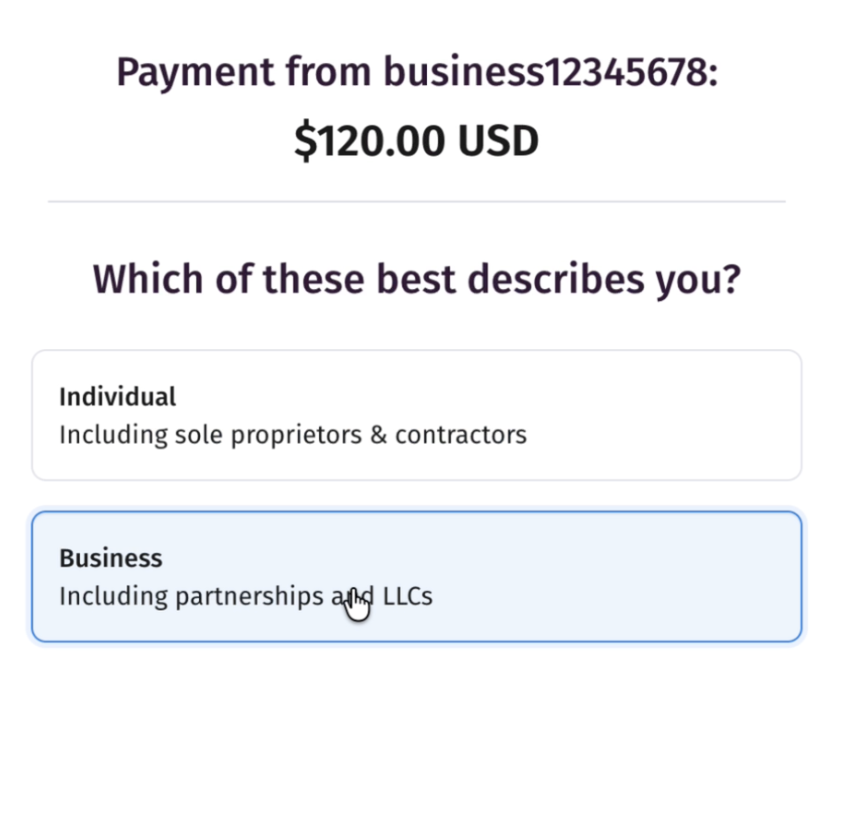
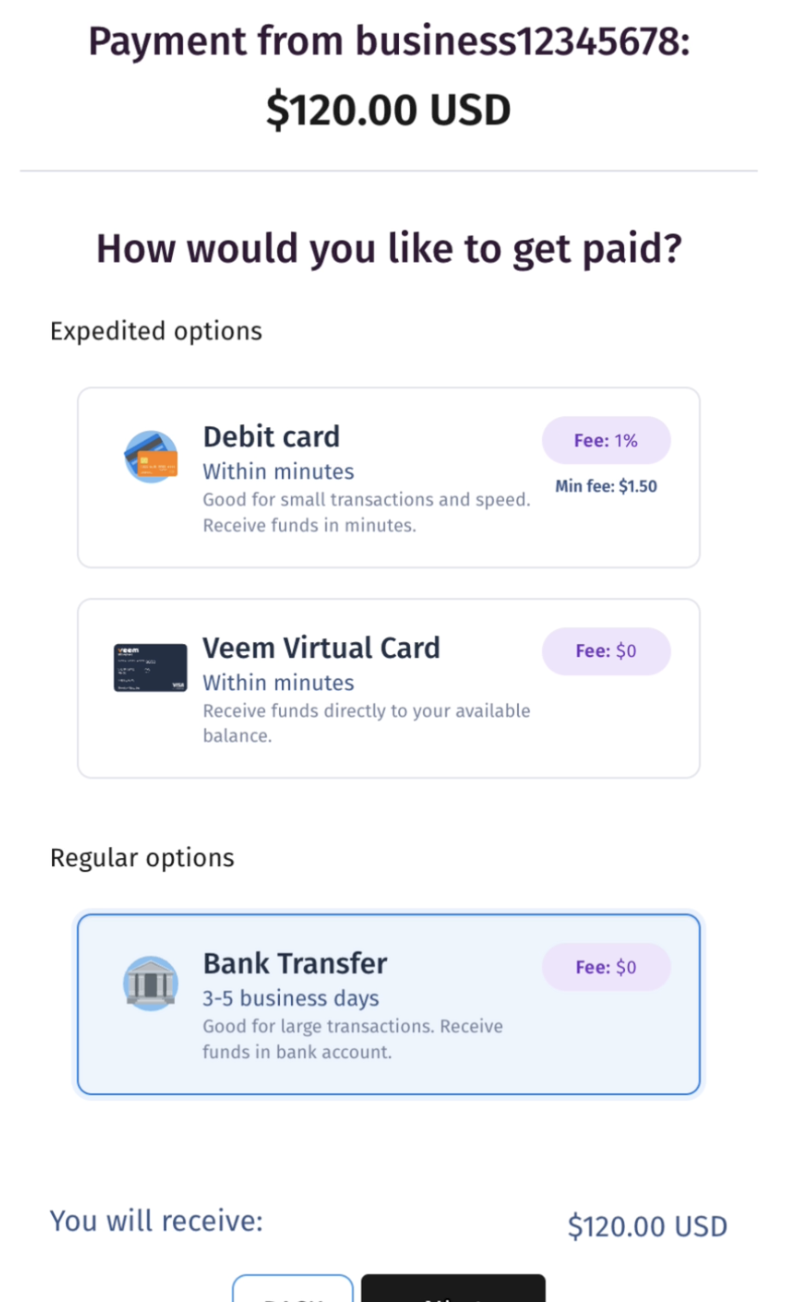
Connect a receiving method account
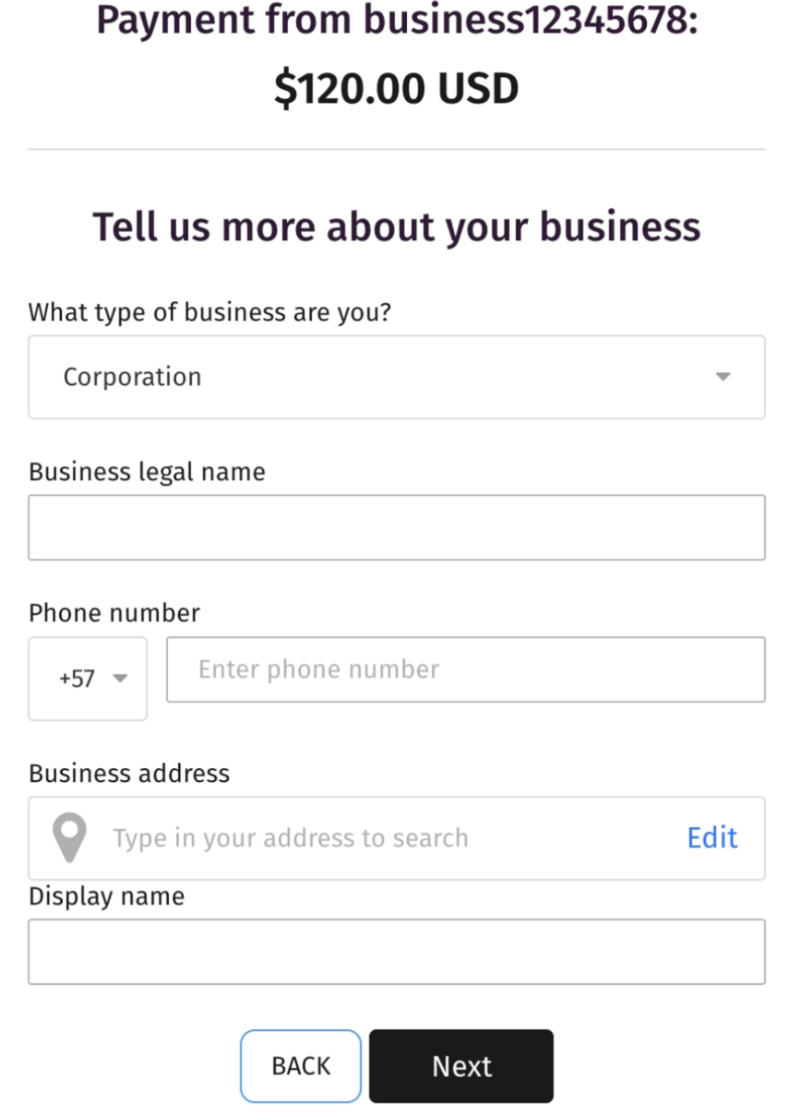
Complete the account information so your payment can be claimed and sent to your registered funding method.
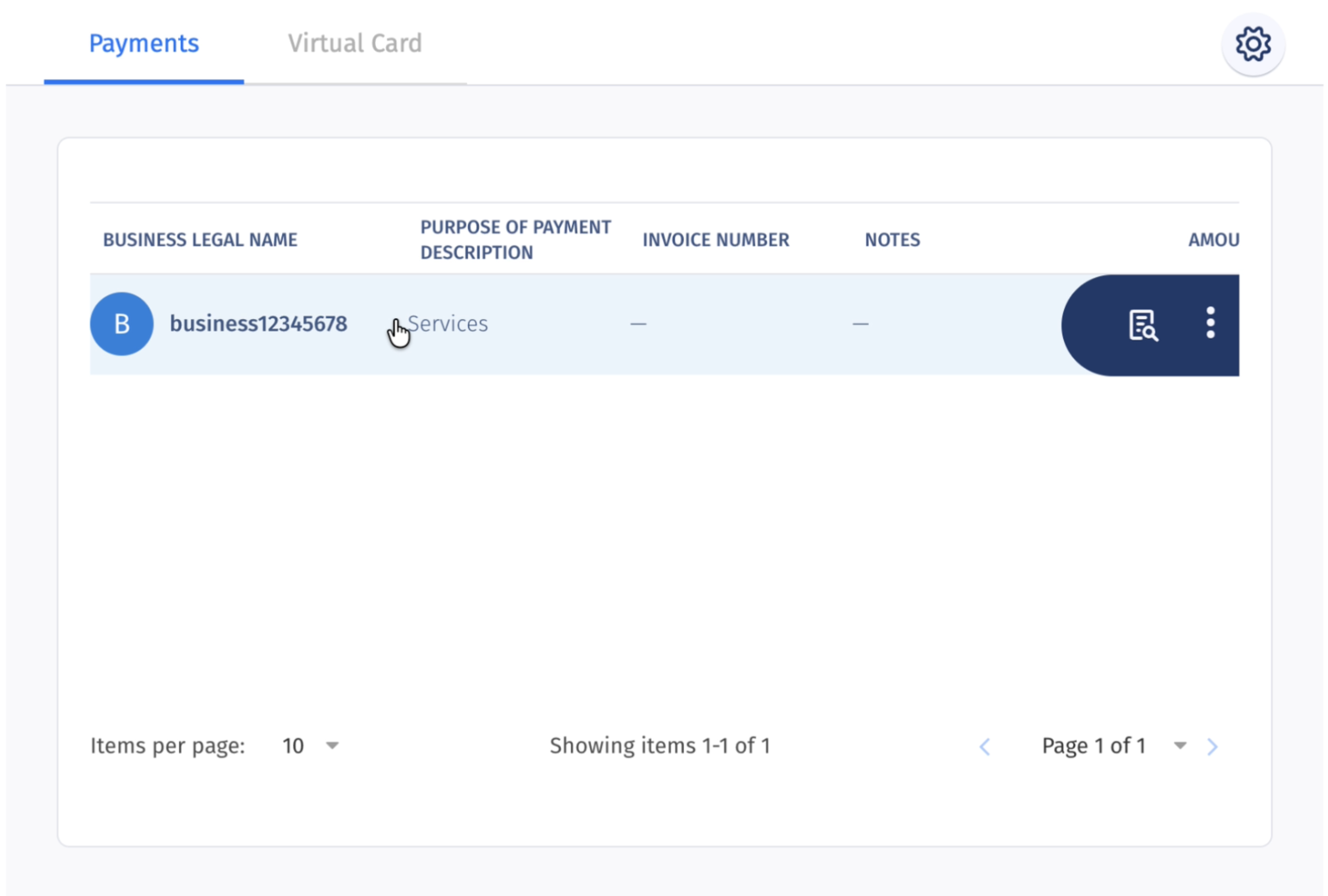
Future payments the user attempts to claim will be shown in the new portal, where they can view their payments, account settings, and more.
Handover to your website
After successfully collecting the receiving information and missing information, the onComplete function callback will be invoked to trigger the handover back to your website.
onCompletecallback will be called withreferenceId, presetsanduserInputsuserInputsis a subset of information provided by payer/payee in the plugin UI. This information can be used for confirmation page(s) or stored for later use as needed
userInputs = {
    {
        "account": {
            "type": "Business",
            "id": "123456",
            "firstName": "First",
            "lastName": "Last",
            "email": "[email protected]"
        },
        "fundingMethod": {
            "type": "Bank",
            "id": "Bank-12345"
        },
        "paymentStatus": {
            "id": "987654-Payment",
            "amount": {
                "number": 120,
                "currency": "USD"
            },
            "status": "Sent",
            "estimatedCompletionDate": "2025-11-28T08:00Z"
        }
    }
}
Next Steps
Now that the payee plugin has been successfully integrated, and receiving information securely stored, call the Create Payment API with the Veem's fundingMethod type and id to send payments.
Monitor and track user’s journey by subscribing to different events using payment and account webhooks.
Updated about 2 months ago